How to Fix WiFi Dead Zones: Complete Guide to Whole-Home WiFi Coverage
"Why is my WiFi slow upstairs?" A weak signal is only one possibility. Congested channels, a bad wired uplink, overloaded equipment, poor roaming, internet-service problems or the phone, tablet, or computer itself can produce the same complaint.
A professional diagnosis separates coverage, capacity, interference, roaming and internet throughput before equipment is moved or replaced.
💡 Quick Answer: Measure first. Many homes need properly placed wired access points, a clean channel/power plan and a reliable router/switch—not a pile of wireless extenders or an automatic “mesh” recommendation.
A real WiFi fix starts with the floor plan and wired network
Access points, switches, router, cabling, channel plan and device roaming must be designed as one system.
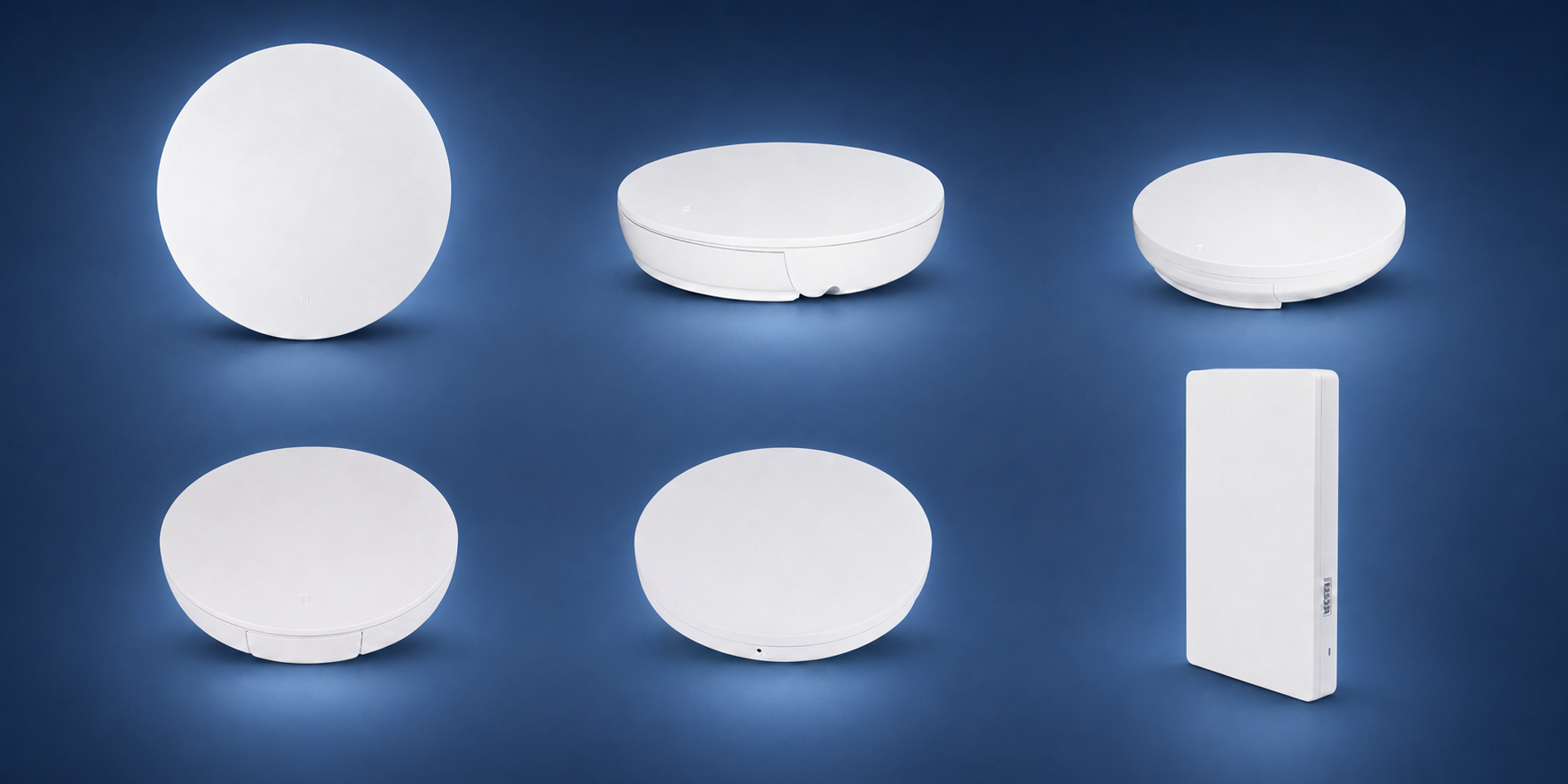
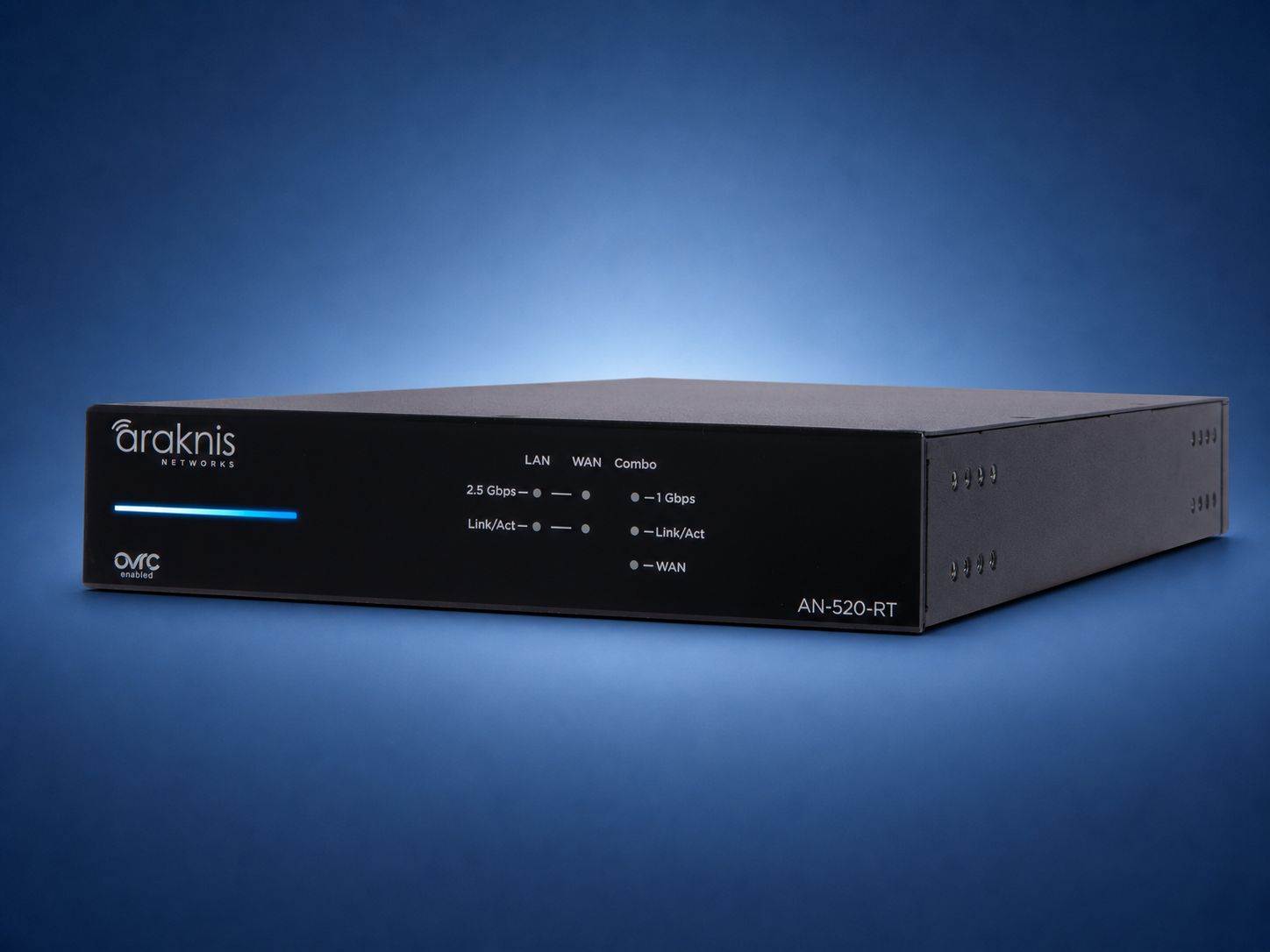
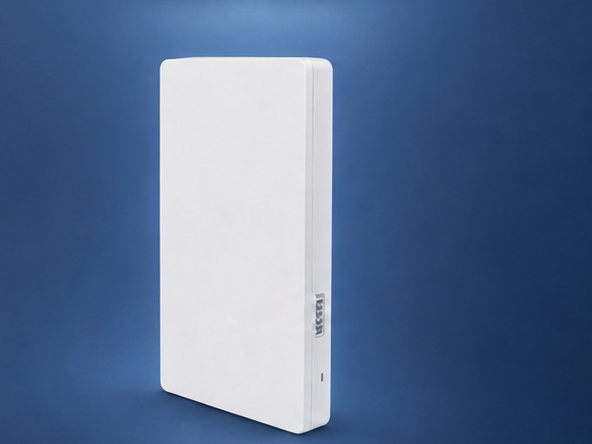
Field test: validate signal, interference, throughput and roaming at the places people actually use devices. Adding “more mesh” without measuring can create overlap and new problems.
What Causes WiFi Dead Zones?
Before we fix the problem, let's understand what causes it:
1. Distance from Router
WiFi signals weaken as they travel. If your router is in the basement and you're trying to use WiFi on the second floor, the signal has to travel through floors, walls, and ceilings - losing strength along the way.
2. Building Materials
Different materials block WiFi signals differently:
- Concrete & Brick: Block signals significantly
- Metal: Almost completely blocks WiFi
- Plaster: Reduces signal strength
- Water: Pipes and aquariums can interfere
- Drywall: Minimal impact, but adds up over distance
3. Interference
Your WiFi competes with other signals:
- Neighbors' WiFi networks
- Microwaves (when running)
- Bluetooth devices
- Baby monitors
- Cordless phones
4. Outdated Equipment
Older equipment may lack the capacity, security features, radio management, or software support a current network needs. A newer Wi-Fi generation can improve efficiency and available throughput with compatible clients, but it does not automatically create more range through walls.
5. Router Placement
Where your router is located matters. Routers hidden in closets, basements, or behind furniture don't perform as well as centrally located routers.
Quick Fixes You Can Try First
Before investing in new equipment, try these free or low-cost solutions:
1. Reposition Your Router
Best location: Central location, elevated (on a shelf or wall), away from walls and metal objects, in an open area.
- Move router to a central location in your home
- Elevate it - put it on a shelf or mount it on a wall
- Keep it away from metal objects, microwaves, and thick walls
- Point antennas vertically (if your router has external antennas)
2. Update Router Firmware
Outdated firmware can cause performance issues. Check your router manufacturer's website for updates.
3. Change WiFi Channel
If neighbors' WiFi is interfering, changing your router's channel can help. Use a WiFi analyzer app to find the least crowded channel.
4. Remove Interference Sources
Move routers away from microwaves, baby monitors, and other wireless devices.
5. Verify Antenna Position and Product Guidance
If the router has adjustable external antennas, follow the manufacturer's placement guidance. A higher-gain replacement changes the coverage pattern and may not improve service in the problem area; use only compatible, permitted antennas.
When Quick Fixes Aren't Enough
If the quick fixes do not solve the problem, measure the affected areas and choose an approach that fits the building, available cabling, connected devices, and performance goal.
Option 1: Wireless Extenders
Some extenders repeat an existing wireless link; others can share the same network name or use a wired backhaul. A repeater placed where the incoming signal is already weak can reduce usable throughput, so treat it as a product- and placement-specific option.
- Pros: Can be a simple fix for a limited area when cabling is unavailable
- Cons: Wireless backhaul, placement, radio design, and device roaming can limit results
Our recommendation: Do not buy one solely from a coverage claim. Test the existing signal and decide whether a wired access point, managed mesh node, or a limited extender is the appropriate tool.
Option 2: Powerline Adapters
Powerline adapters use the home's electrical wiring as a data path. Results vary substantially with the adapters, circuits, panel layout, wiring, noise, and connected loads.
- Pros: Easy to install, works through walls
- Cons: Throughput and stability depend on the electrical path; crossing breakers or phases can reduce performance but is not a universal yes-or-no rule
Good for: Extending internet to one specific room, not whole-home coverage.
Option 3: Multi-Access-Point or Mesh System
Multi-access-point systems use several radios under one network design. Wired backhaul is usually preferred when available; wireless mesh backhaul can be useful where new cabling is impractical. Neither approach replaces proper placement and channel planning.
What a Well-Designed Multi-Access-Point System Can Improve
When measured and configured correctly, a multi-access-point system can improve:
- Consistent network name: Access points can broadcast the same SSID and security settings
- Coverage: Additional, correctly placed radios can serve areas one router cannot reach well
- Capacity: Devices can be distributed across radios and bands instead of sharing one cell
- Management: Many systems provide centralized configuration and monitoring
- Roaming support: The network can help, but the device ultimately decides when to roam
- Resilience: Some mesh systems can reroute wireless backhaul, but an access-point failure still creates a local coverage and capacity loss
How Mesh WiFi Systems Work
A mesh system consists of:
- Main Router: Connects to your modem (usually placed where your current router is)
- Satellite Nodes: Placed throughout your home to extend coverage
- Roaming: Compatible devices can move between access points; verify real devices because roaming behavior is controlled by the device
Illustrative layout only: A two-story home might use:
- Main router in living room (first floor)
- Node in master bedroom (second floor)
- Node in basement or garage
Professional Mesh WiFi Installation: What to Expect
When we install a mesh WiFi system, here's what we do:
1. Site Survey
We test your current WiFi coverage, identify dead zones, and map your home's layout to determine optimal node placement.
2. Equipment Selection
We choose the architecture from measured requirements rather than a brand list:
- Wired access points: Preferred where cable routes and PoE switching are available
- Wireless mesh nodes: Useful where a reliable wired backhaul cannot be installed
- Indoor and outdoor models: Selected for the mounting environment and coverage area
3. Professional Installation
We install access points in planned locations, configure the network, and then test coverage, throughput, interference, and roaming in the areas that matter.
4. Network Optimization
We optimize supported settings for the home and can configure features such as guest access or content controls when the selected platform provides them. Security also depends on updates, passwords, account protection, and ongoing administration.
5. Testing & Training
We test coverage throughout your home, verify speeds, and show you how to use the system.
How Professional WiFi Installation Is Priced
Pricing depends on the survey, number and type of access points, router and switch requirements, cabling, rack work, internet handoff, configuration, and testing.
- Equipment: Router, switching, access points, controller or cloud management, mounts, and power protection
- Infrastructure: New cable runs, terminations, patching, and any repair or finish work
- Professional services: Survey, configuration, migration, testing, documentation, and training
Confirm recurring costs: Some platforms or support plans may have subscriptions, while others do not. The proposal should state any recurring fees and what happens if they are not renewed.
DIY vs. Professional Installation
You can buy and install many mesh systems yourself. A professional installation should add measurable design and documentation value:
- Survey-based placement: We choose candidate locations from the floor plan, construction, cabling, and measured signal conditions
- Documented configuration: We set channels, power, networks, and security for the actual equipment and site
- Measured acceptance: We test the agreed rooms and outdoor areas against practical signal, throughput, and roaming goals
- Defined support: The proposal should state what post-installation help is included and what is billable
Common WiFi Dead Zone Scenarios & Solutions
Scenario 1: "WiFi doesn't work in my basement"
Problem: Basements are often far from routers and surrounded by concrete.
Solution: Add a mesh node in the basement. For finished basements, place it on a wall. For unfinished basements, mount it on a ceiling joist.
Scenario 2: "Slow WiFi upstairs"
Problem: Router is on first floor, signal weakens going upstairs.
Solution: Add a mesh node on the second floor, ideally in a central location like a hallway or master bedroom.
Scenario 3: "WiFi cuts out in the garage"
Problem: Garage is separated by thick walls and often far from router.
Solution: Add an outdoor-rated mesh node or extend network with a node near the garage.
Scenario 4: "WiFi is slow when everyone is home"
Problem: Old router can't handle multiple devices simultaneously.
Solution: Measure internet, router, switch, access-point, airtime, and device performance. The answer may be a configuration change, more capacity, a wired access point, a newer platform, or an internet-service correction.
Signs You Need Professional WiFi Installation
You should consider professional WiFi installation if:
- You have dead zones in multiple areas
- WiFi is slow even when close to router
- You have a large home (2,500+ sq ft)
- You have many devices (20+)
- You work from home and need reliable internet
- You've tried quick fixes and they didn't work
Ready to Fix Your WiFi Dead Zones?
Get a free WiFi assessment. We'll test your current coverage, identify dead zones, and recommend the best solution for your home.
Schedule Free WiFi AssessmentOr message us on WhatsApp
Preventing Future WiFi Problems
Once your mesh system is installed, keep it running smoothly:
- Keep Firmware Updated: Most mesh systems update automatically
- Monitor Performance: Use the app to check speeds and coverage
- Add Nodes as Needed: If you add rooms or floors, add more nodes
- Regular Maintenance: We offer maintenance plans to keep everything optimized
Primary references
Araknis access points · Luxul networking · CEDIA smart-home wiring guide. Reviewed August 15, 2026. Coverage and speed depend on the internet service, floor plan, building materials, interference, cabling, access-point placement, channel plan, client devices, firmware, and measured validation. An added access point is not automatically the right fix.
Final Thoughts
WiFi dead zones are often fixable, but the right answer may be better placement, a wired access point, a managed multi-access-point design, interference correction, or replacement of failing equipment.
Denali Tech assesses residential networks in the Chicago area. We identify the cause, define the coverage and performance goal, recommend an appropriate design, and validate the completed work in the agreed areas.
Get strong WiFi coverage Throughout Your Home
Stop guessing at dead zones. Start with measurements and a clear scope for the rooms and outdoor areas that need reliable service.
Schedule Free WiFi Assessment