Smart Home Not Working? 10 Common Issues & Professional Solutions
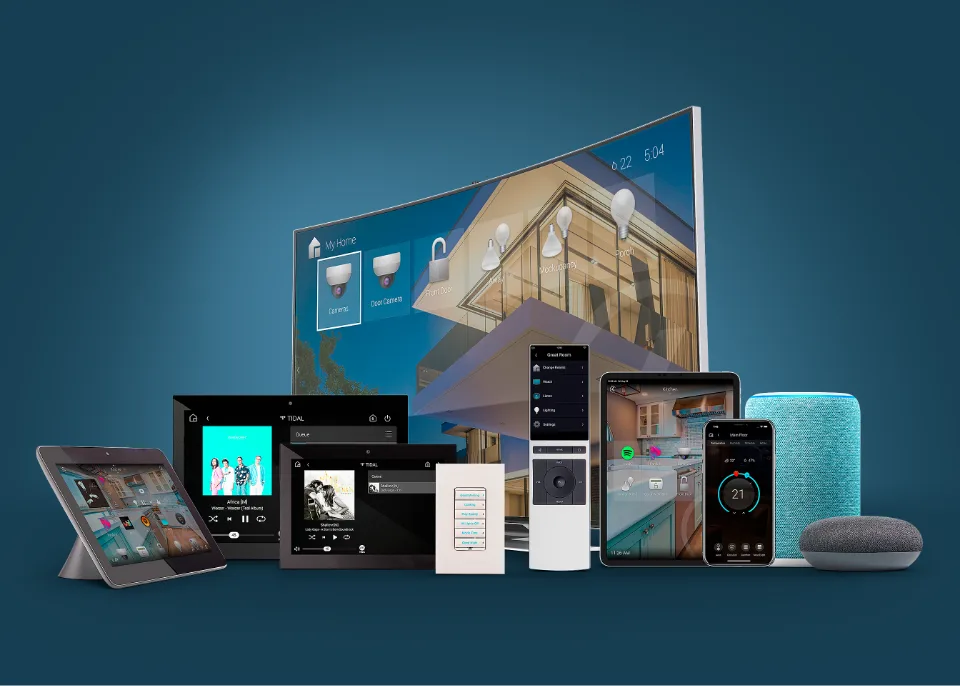
"My smart home isn't working!" We hear this all the time from frustrated homeowners in Chicago. You set up your smart devices, everything worked great for a while, and now... nothing. Devices won't connect, lights won't respond, and your smart home that was supposed to make life easier is now making it more complicated.
The good news? Most smart home problems are fixable, and we're here to help. As professional smart home installers who've fixed thousands of smart home issues, we know exactly what goes wrong and how to fix it.
💡 Quick Tip: 90% of smart home problems are caused by WiFi issues. Before you throw your devices out the window, start with your router. Unplug it for 30 seconds, plug it back in, and wait 2 minutes. This fixes more problems than you'd think!
Why Smart Homes Stop Working
Smart home systems are complex. They rely on multiple components working together: your WiFi network, internet connection, devices, apps, hubs, and cloud services. When any part of this chain breaks, your smart home stops working.
Common causes include:
- WiFi problems: Weak signal, router issues, or network congestion
- Power issues: Devices losing power or resetting
- Software updates: Apps or firmware needing updates
- Internet outages: Your ISP having problems
- Integration conflicts: Devices not playing well together
- Distance from router: Devices too far from WiFi source
10 Most Common Smart Home Problems (And How to Fix Them)
Problem #1: Devices Keep Disconnecting from WiFi
What's happening: Your smart lights, thermostat, or other devices keep showing as "offline" in your app, then reconnect, then disconnect again.
Common causes:
- Weak WiFi signal where devices are located
- Router can't handle too many connected devices
- WiFi interference from neighbors or other electronics
- Router needs firmware update
- Outdated router hardware
✅ Solutions:
- Check WiFi Signal Strength: Move your phone to where the device is and check your WiFi signal. If it's weak (1-2 bars), that's your problem.
- Restart Your Router: Unplug router for 30 seconds, plug back in, wait 2 minutes. This fixes many connectivity issues.
- Move Devices Closer to Router: If possible, move devices closer or move router to a more central location.
- Upgrade Your Router: Older routers can't handle 20+ connected devices. Consider a mesh WiFi system for whole-home coverage.
- Use WiFi Extenders: For large homes, add WiFi extenders or mesh nodes to boost signal in problem areas.
- Professional WiFi Installation: For persistent issues, professional mesh WiFi installation ensures perfect coverage throughout your home.
⚠️ When to Call a Professional:
If devices keep disconnecting after trying basic fixes, or if you have a large home (3,000+ sq ft) with multiple dead zones, it's time to call a professional. We can install a mesh WiFi system that eliminates these problems permanently.
Problem #2: Smart Lights Won't Turn On or Respond
What's happening: You tap the app to turn on lights, but nothing happens. Or lights turn on but won't dim or change colors.
Common causes:
- Light bulb lost power connection
- WiFi disconnection
- App needs update or restart
- Hub or bridge offline
- Firmware update needed
✅ Solutions:
- Check Physical Power: Make sure the light switch is on and the bulb has power. Some smart lights need the physical switch to stay on.
- Restart the App: Close and reopen your smart home app. Sometimes apps glitch and need a fresh start.
- Check Hub/Bridge: If you use a hub (like Philips Hue bridge or Lutron bridge), make sure it's powered on and connected to WiFi.
- Reset the Light: Turn the light switch off for 10 seconds, then back on. For smart bulbs, unscrew and rescrew the bulb.
- Re-pair the Device: Remove the light from your app and add it back. This often fixes connection issues.
- Check for Updates: Update your app and check if the light needs a firmware update.
Problem #3: Voice Assistant (Alexa, Google) Not Controlling Devices
What's happening: You say "Alexa, turn on the lights" but nothing happens. Or devices work in the app but not via voice control.
Common causes:
- Skills/actions not properly linked
- Device names don't match what you're saying
- Voice assistant lost internet connection
- Skill/app needs re-authorization
✅ Solutions:
- Re-link Skills: Go to your Alexa or Google Home app, disable the smart home skill, then re-enable and re-link your account.
- Check Device Names: Make sure device names in your smart home app match what you're saying to your voice assistant.
- Restart Voice Assistant: Unplug your Echo or Google Home for 30 seconds, plug back in.
- Check Internet Connection: Your voice assistant needs internet. Check if it's connected to WiFi.
- Discover Devices: In your voice assistant app, trigger "discover devices" to refresh the device list.
Problem #4: Smart Thermostat Not Responding
What's happening: Your smart thermostat shows the wrong temperature, won't change settings, or keeps disconnecting.
✅ Solutions:
- Check Power Connection: Smart thermostats need power. Check if it's properly wired and getting power.
- Restart the Thermostat: Remove it from the wall mount (if battery-powered, remove batteries), wait 30 seconds, put it back.
- Check WiFi Connection: Ensure thermostat is connected to WiFi in settings.
- Update Firmware: Check for firmware updates in the thermostat's app or settings.
- Reset to Factory Settings: As a last resort, factory reset and set up again. This will erase all your schedules.
Problem #5: Security Cameras Not Recording or Showing Live Feed
What's happening: Cameras show "offline" in the app, won't record, or you can't view the live feed.
✅ Solutions:
- Check Power and Internet: Ensure cameras have power and are connected to WiFi.
- Restart Camera: Unplug camera, wait 30 seconds, plug back in. Wait 2 minutes for it to reconnect.
- Check Storage: If using local storage (SD card or NVR), ensure there's space available.
- Check Subscription: Some cameras require cloud storage subscriptions. Verify your subscription is active.
- Check App Permissions: Ensure the camera app has permission to access your location and camera.
- Reboot Router: Camera connectivity issues are often router-related. Restart your router.
Problem #6: Smart Home Hub (Control4, URC, Hubitat) Offline
What's happening: Your main smart home hub shows as offline and nothing works. This is more serious than individual device problems.
⚠️ This is Critical:
If your Control4 or URC hub is offline, most of your smart home won't work. These hubs control everything, so fixing this is priority #1.
✅ Solutions:
- Check Power: Ensure hub is plugged in and power LED is on.
- Check Ethernet Connection: Most hubs connect via Ethernet. Ensure cable is plugged in securely on both ends.
- Restart Hub: Unplug hub, wait 30 seconds, plug back in. Wait 3-5 minutes for full restart.
- Check Router: Restart your router. Hub can't connect if router is down.
- Check Internet: Verify your internet is working. Test on another device.
- Professional Support: For Control4 or URC systems, you may need professional support to reconnect and reprogram. Contact your installer.
Problem #7: Devices Won't Integrate Together
What's happening: You have smart lights, thermostat, and security system, but they won't work together. Scenes and automations don't trigger.
Why this happens: Different brands use different protocols. Not all devices are compatible with each other. You might have Zigbee devices, Z-Wave devices, WiFi devices, and Bluetooth devices that can't talk to each other.
✅ Solutions:
- Use a Universal Hub: Control4, URC, or SmartThings hubs can integrate different device types into one system.
- Check Compatibility: Before buying new devices, check if they're compatible with your existing system.
- Stick to One Ecosystem: Use devices from the same brand or ecosystem (all Lutron, all Philips Hue, etc.).
- Professional Integration: Professional installers can program devices from different brands to work together seamlessly.
Problem #8: Smart Locks Not Responding
What's happening: Can't lock/unlock doors via app, keypad not working, or lock shows as offline.
✅ Solutions:
- Check Battery: Smart locks run on batteries. Low battery is the #1 cause of problems. Replace batteries.
- Check WiFi/Z-Wave Connection: Ensure lock is connected to your network or hub.
- Physical Override: Most smart locks have a physical key override. Use this if lock is completely unresponsive.
- Reset Lock: Consult manufacturer instructions for factory reset procedure.
- Check Door Alignment: If lock won't physically lock/unlock, door might be misaligned. Adjust door or strike plate.
Problem #9: Apps Crashing or Not Loading
What's happening: Your smart home app crashes when you open it, won't load devices, or freezes constantly.
✅ Solutions:
- Update the App: Go to App Store or Google Play and update to latest version.
- Restart Your Phone: Sometimes phones need a restart to clear memory issues.
- Uninstall and Reinstall: Delete the app and reinstall it. This fixes many app issues.
- Clear App Cache: On Android, clear app cache in settings. On iPhone, offload and reinstall.
- Check Phone Storage: Ensure you have enough storage space on your phone.
- Update Phone OS: Make sure your phone's operating system is up to date.
Problem #10: Everything Was Working, Now Nothing Works
What's happening: Your smart home worked perfectly for months, then suddenly everything stopped working at once.
This usually means:
- Router crashed or needs restart
- Internet service outage
- Power outage that reset devices
- ISP changed something (IP address, settings)
- Major software update broke compatibility
✅ Solutions (In Order):
- Check Internet: Test internet on another device. If no internet, call your ISP.
- Restart Router: Unplug router for 30 seconds, plug back in, wait 2-3 minutes.
- Restart Hub: If you have a hub, restart it after router is back online.
- Wait 10 Minutes: Sometimes devices just need time to reconnect after a restart.
- Check for Updates: Update router firmware, apps, and device firmware.
- Call Professional: If everything stopped working and basic fixes don't work, call a professional. Something bigger might be wrong.
The Smart Home Troubleshooting Checklist
Before calling a professional, try these steps in order:
- Restart Your Router: Unplug for 30 seconds, plug back in, wait 2 minutes
- Check Internet Connection: Test on phone or computer
- Restart Problem Device: Unplug or remove power for 30 seconds
- Restart App: Close and reopen your smart home app
- Check Device Power: Ensure device has power and batteries aren't dead
- Check WiFi Signal: Move device closer to router or check signal strength
- Update Everything: App updates, firmware updates, router firmware
- Re-pair Device: Remove from app and add back
- Factory Reset: Last resort - resets device to default settings
When DIY Troubleshooting Isn't Enough
Sometimes, you've tried everything and your smart home still won't work. Here's when it's time to call a professional:
- Multiple devices failing: If 3+ devices are having the same problem, it's likely a system-wide issue
- Control4 or URC systems: These require professional programming and support
- WiFi coverage issues: Persistent dead zones need professional mesh WiFi installation
- Integration problems: Devices from different brands not working together need professional programming
- Complex setups: Large homes with 30+ devices need professional optimization
- Time constraints: If you don't have time to troubleshoot, professionals can fix it faster
💡 Professional Benefit: Professional installers have tools and experience to diagnose problems quickly. What might take you hours of troubleshooting, we can often fix in minutes. Plus, we ensure everything is set up correctly so problems don't come back.
Preventing Smart Home Problems
The best way to fix smart home problems is to prevent them in the first place:
1. Invest in Good WiFi
Weak WiFi is the #1 cause of smart home problems. Don't use the router your ISP gave you. Invest in a quality mesh WiFi system (like Eero, Ubiquiti, or Orbi) that covers your entire home.
2. Keep Everything Updated
Regularly update apps, device firmware, and router firmware. Set devices to auto-update when possible.
3. Use Professional Installation
Professional installation ensures proper setup, wiring, and programming. Problems are less likely when everything is done right the first time.
4. Choose Compatible Devices
Before buying new devices, ensure they're compatible with your existing system. Mixing incompatible brands causes problems.
5. Regular Maintenance
Just like your car needs maintenance, your smart home does too. Professional maintenance checks can catch problems before they become major issues.
Common Smart Home Mistakes That Cause Problems
Avoid these common mistakes:
- Using the router your ISP gave you: These are cheap and can't handle multiple devices
- Putting router in basement or corner: Router should be central for best coverage
- Too many WiFi devices: Older routers can't handle 20+ devices. Upgrade to mesh WiFi
- Mixing incompatible brands: Not all smart devices work together. Check compatibility first
- Not securing your network: Weak WiFi passwords can allow others to use your network, slowing it down
- Ignoring firmware updates: Outdated firmware causes compatibility issues
- Poor device placement: Devices too far from router or behind thick walls won't connect well
Smart Home Troubleshooting by Device Type
Smart Lights Not Working
- Check physical switch is on
- Restart hub/bridge if using one
- Re-pair bulb to hub
- Update app and firmware
- Replace bulb if consistently failing
Smart Thermostat Issues
- Check wiring and power
- Restart thermostat
- Reconnect to WiFi
- Check for firmware updates
- Verify compatibility with HVAC system
Security Camera Problems
- Check power and WiFi connection
- Restart camera
- Check storage space (SD card or cloud)
- Verify subscription status
- Update app and firmware
- Check camera placement (not too far from router)
Smart Speaker/Alexa Issues
- Restart device (unplug 30 seconds)
- Check WiFi connection
- Re-link smart home skills
- Update device firmware
- Check microphone isn't muted
- Verify internet connection
Advanced Troubleshooting: When Basic Fixes Don't Work
If you've tried everything above and your smart home still isn't working, here are advanced steps:
1. Check Router Logs
Log into your router's admin panel and check connection logs. Look for devices that keep connecting/disconnecting - this identifies problem devices.
2. Change WiFi Channel
WiFi interference from neighbors can cause problems. Log into router and change to a less crowded channel (try channels 1, 6, or 11 for 2.4GHz).
3. Separate 2.4GHz and 5GHz Networks
Many smart devices only work on 2.4GHz WiFi, but phones connect to 5GHz. If networks have the same name, devices might connect to the wrong one. Give them different names.
4. Check Device IP Conflicts
Two devices with the same IP address will conflict. Ensure your router is set to assign unique IPs (DHCP should handle this, but check router settings).
5. Factory Reset Everything
As a last resort, factory reset all devices and set everything up again. This is time-consuming but often fixes persistent issues.
⚠️ Warning About Factory Resets:
Factory resetting erases all your settings, schedules, scenes, and automations. You'll have to set everything up again from scratch. For complex systems, this can take hours. Consider professional help instead.
Why Professional Help is Worth It
We get it - you want to fix things yourself. But sometimes, calling a professional is faster, cheaper, and less frustrating:
- We fix it faster: Years of experience means we know what to check first
- We have the tools: Professional WiFi analyzers, network testers, and diagnostic tools
- We prevent future problems: We don't just fix the current issue - we optimize your system so problems don't come back
- We handle complex systems: Control4 and URC systems require professional programming
- You save time: Your time is valuable. Why spend hours troubleshooting when we can fix it in an hour?
- Warranty and support: Professional installations come with warranties and ongoing support
Smart Home Not Working? We Can Fix It.
Don't waste more time troubleshooting. Our team has fixed thousands of smart home problems for Chicago-area homeowners. We can diagnose and fix your issues quickly, often on the same day.
We fix: WiFi problems, device connectivity, hub issues, integration problems, and system-wide failures. We also install professional mesh WiFi systems that eliminate connectivity problems permanently.
Get Professional Smart Home HelpOr call us at (312) 439-7500
FAQ: Smart Home Troubleshooting
Why are my smart home devices not connecting?
Smart home devices not connecting is usually caused by WiFi issues, router problems, or devices being too far from the router. Check your WiFi signal strength, restart your router, and ensure devices are within range. For persistent issues, consider upgrading to a mesh WiFi system.
How do I fix smart home devices that keep disconnecting?
Devices that keep disconnecting often need a better WiFi signal. Consider upgrading to a mesh WiFi system, moving your router to a central location, or adding WiFi extenders. Professional WiFi installation can solve this permanently by ensuring perfect coverage throughout your home.
Why won't my smart lights turn on?
Smart lights not turning on could be due to power issues, WiFi disconnection, app problems, or firmware updates needed. Check if the light has power, restart the app, ensure your WiFi is working, and check if there's a hub/bridge that needs to be online.
How do I fix a smart home hub that's not responding?
If your smart home hub isn't responding, try unplugging it for 30 seconds and plugging it back in. Check for firmware updates, ensure it's connected to WiFi (or Ethernet), and verify the power supply is working. For Control4 or URC systems, professional support may be needed to reconnect and reprogram.
My smart home was working fine, now nothing works. What happened?
If everything stopped working at once, it's usually a router or internet issue. Restart your router first (unplug 30 seconds, plug back in). Check if your internet is working. Wait 10 minutes for devices to reconnect. If problems persist, call your ISP or a professional installer.
When should I call a professional for smart home problems?
Call a professional smart home installer if basic troubleshooting doesn't work, you have multiple devices failing, need system-wide fixes, have Control4/URC systems that require professional programming, or want to prevent problems from happening again. Professional help saves time and ensures everything works correctly.
Can you fix smart home problems remotely?
Some problems can be diagnosed remotely, but most require an in-home visit. We can often identify the issue over the phone, but fixing WiFi coverage, reconnecting devices, and reprogramming systems usually requires being in your home.
How much does smart home troubleshooting cost?
Troubleshooting costs vary based on the problem. Simple fixes (like restarting devices or reconnecting) might take 30 minutes. Complex issues (system-wide problems, WiFi installation, reprogramming) take longer. We offer free consultations to diagnose problems and provide upfront pricing before any work.
Final Thoughts
Smart home problems are frustrating, but most are fixable. Start with the basics: restart your router, check WiFi signal, and restart problem devices. 90% of issues are solved with these simple steps.
For persistent problems or complex systems, don't hesitate to call a professional. As Chicago's smart home experts, we've seen every problem imaginable and know how to fix them quickly.
Remember: A properly installed and maintained smart home shouldn't cause constant problems. If you're troubleshooting more than using your smart home, it might be time for a professional installation or system upgrade.
Need Professional Smart Home Help?
Our team has helped 100+ Chicago-area homeowners fix smart home problems and get their systems working perfectly. We offer same-day troubleshooting, professional WiFi installation, and complete smart home system repairs.
Services: Troubleshooting, WiFi installation, device reconnection, system reprogramming, Control4/URC support, and complete smart home optimization.
Schedule Smart Home ServiceCall: (312) 439-7500 | Email: Hello@denalitechs.com