Why Professional Network Setup is Superior: Araknis Network Installation Guide
What's the difference between a DIY network setup and a professional network installation? It's like the difference between a toy car and a luxury vehicle - they both get you from point A to point B, but one does it with reliability, performance, and style.
As professional network installers, we've seen it all. Homeowners who thought they could save money by setting up their own WiFi, only to call us months later with constant connectivity issues, dead zones, and frustration. The truth is: a professional network setup isn't just better - it's superior in every way.
In this guide, we'll show you exactly what makes a professional Araknis network installation superior, using real examples from installations we've completed. You'll see why proper rack mounting, professional equipment, strategic access point placement, and expert configuration make all the difference.
💡 Quick Answer: Professional network setups are superior because they use enterprise-grade equipment (like Araknis), proper rack mounting for organization, strategic access point placement for perfect coverage, professional power management (Wattbox), and expert configuration that ensures reliability and performance. DIY setups typically use consumer-grade equipment that can't handle the demands of modern smart homes.
What Makes This Network Setup Superior?
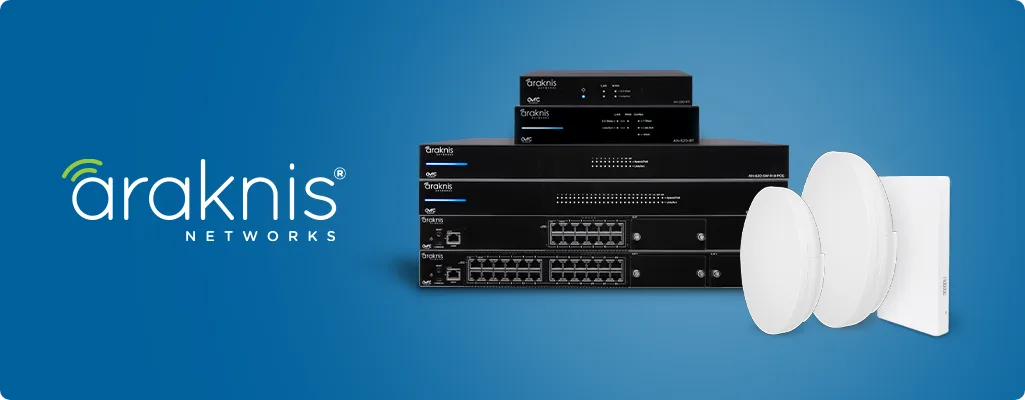
Let's break down exactly what you're seeing in the professional network installation shown above and why it's superior to DIY alternatives:
Network-Only Installation: Just What You Need
If you only need networking (not a full AV system), this is what you get - a clean, professional network-only installation. No AV rack needed, just the essential networking equipment mounted on the wall.
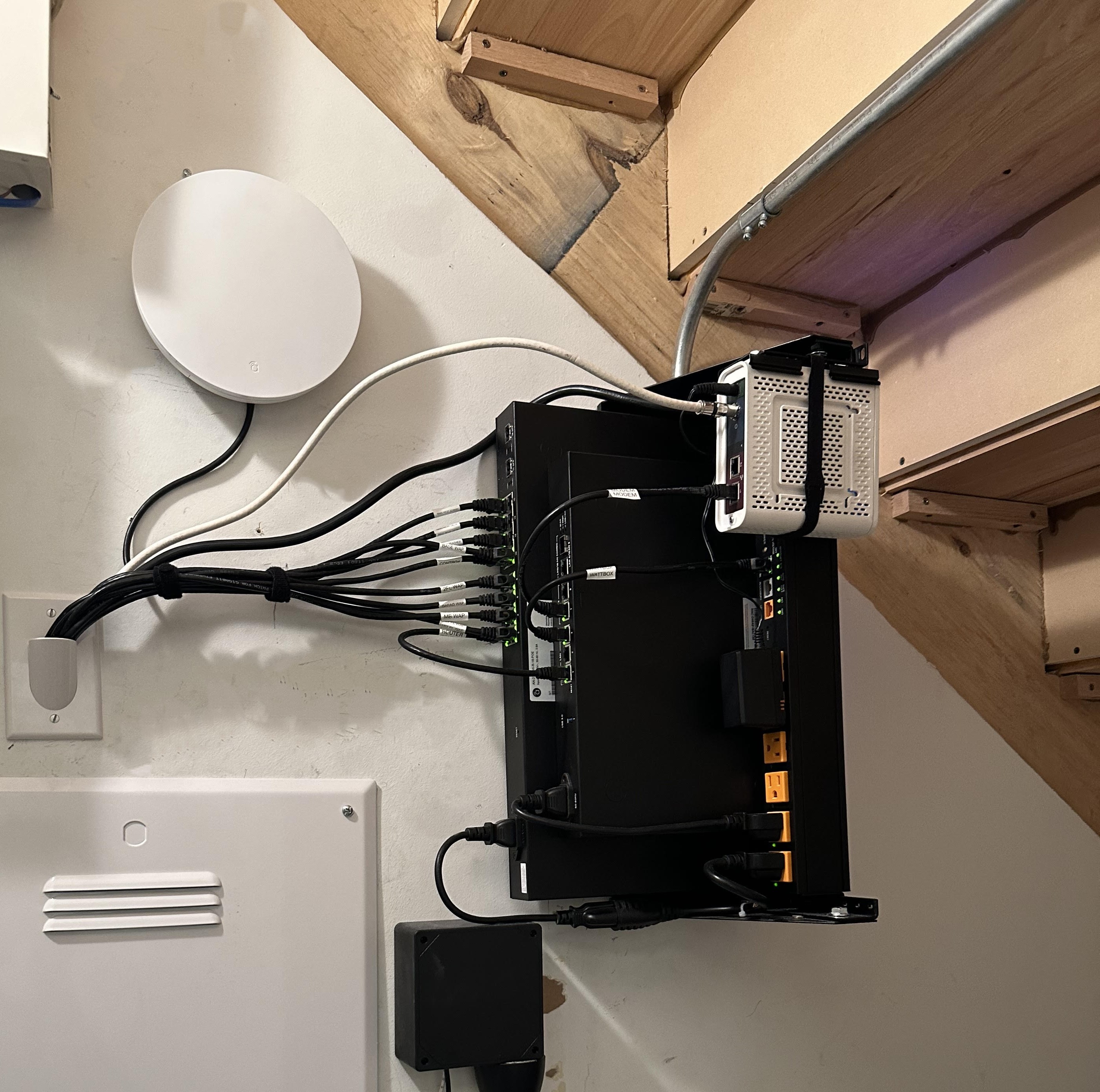
Network-only installation: 4U wall-mount rack with router, POE switch, and Wattbox power management. Perfect if you only need networking - no AV equipment required.
This is what a properly installed professional network looks like. Here's what makes it superior:
- 4U Wall-Mount Rack: Everything is organized, accessible, and professional-looking - perfect for network-only installations
- Enterprise-Grade Router: Araknis router designed for performance and reliability
- POE (Power Over Ethernet) Switch: Powers access points and devices without extra cables
- Wattbox Power Management: Smart power management and remote reboot capability
- Strategic Access Point Placement: Multiple WAPs placed for perfect coverage
- Professional Cable Management: Clean, organized, and labeled for easy troubleshooting
- Network-Only Setup: If networking is all you need, this is the perfect solution - no need for a full AV rack
💡 Network-Only Option: Don't need a full AV system? This network-only installation is perfect. Just networking equipment in a clean 4U wall-mount rack. If you only need WiFi, network infrastructure, and smart home connectivity, this is exactly what you get - no unnecessary AV equipment.
Component Breakdown: Why Each Part Matters
1. Professional Router (Not Your ISP's Free Router)
What you see: An Araknis enterprise-grade router specifically designed for smart homes and high-performance networks.
Why it's superior:
- Enterprise-Grade Performance: Can handle 50+ connected devices without slowing down
- Advanced QoS (Quality of Service): Prioritizes important traffic (video calls, streaming) automatically
- Better Security: Advanced firewall and security features built-in
- Reliability: Designed to run 24/7 without issues
- Professional Management: Can be monitored and managed remotely by professionals
DIY Alternative: Your ISP's free router. These are cheap, consumer-grade devices that can barely handle 10-15 devices, let alone a full smart home with 30+ connected devices.
2. POE (Power Over Ethernet) Switch
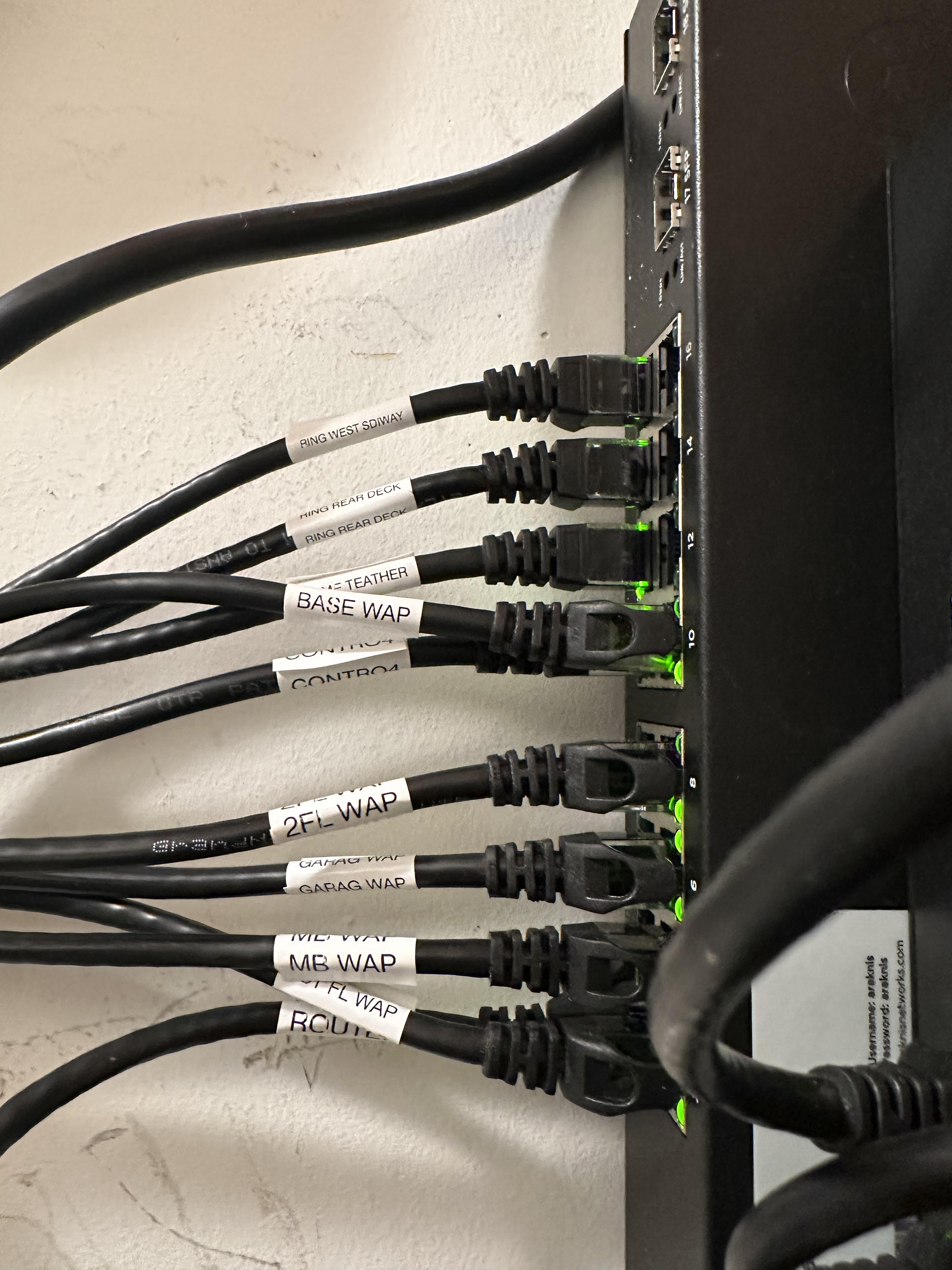
Professional switch installation with labeled cables for easy troubleshooting and maintenance.
What you see: A managed POE switch that powers access points and other devices through Ethernet cables.
Why it's superior:
- POE Power: Access points get power through the Ethernet cable - no need for separate power adapters
- Centralized Power Management: Can reboot devices remotely if needed
- Better Performance: Managed switches offer better performance and control than unmanaged switches
- Professional Labeling: Every cable is labeled, making troubleshooting easy
- VLAN Support: Can separate network traffic (guest network, IoT devices, main network) for better security and performance
🔍 Professional Labeling Matters: Notice how every cable is labeled in the switch photo? This isn't just for looks - it means if there's ever a problem, we can identify which cable goes where instantly. DIY setups rarely have this level of organization, making troubleshooting a nightmare.
3. Wattbox Power Management System
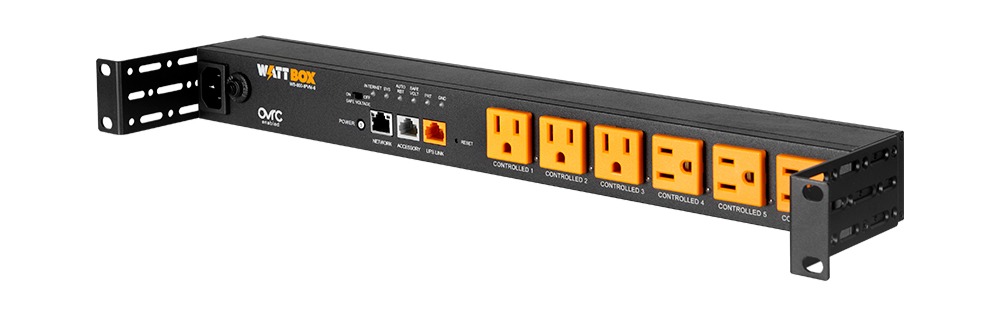
SnapAV Wattbox 800 IPVM power management system for smart power control and remote rebooting.
What you see: A Wattbox 800 IPVM power management system that provides smart power control for all network equipment.
Why it's superior:
- Remote Reboot Capability: If something stops working, we can remotely reboot devices without visiting your home
- Power Sequencing: Devices turn on in the correct order (router first, then switch, then access points)
- Surge Protection: Protects expensive equipment from power surges
- Monitoring: We can monitor power consumption and detect issues
- Automated Recovery: Can automatically reboot devices if they become unresponsive
- Professional Integration: Integrates with Control4 and other smart home systems
DIY Alternative: A cheap power strip. No remote control, no monitoring, no smart features. If something breaks, you're driving home to unplug it.
4. Professional Rack Mounting: Organization Matters
What you see: Everything mounted in a clean, professional 4U wall-mount rack.
Why it's superior:
- Organization: Everything has its place - easy to find and access
- Professional Appearance: Looks clean and professional, not like a mess of cables
- Proper Ventilation: Equipment is mounted for optimal airflow and cooling
- Security: Can be locked to prevent tampering
- Scalability: Easy to add more equipment as your needs grow
- Cable Management: Cables are organized, labeled, and routed properly
DIY Alternative: Equipment sitting on a shelf or desk, cables everywhere, no organization. Looks messy and makes troubleshooting difficult.
Strategic Access Point Placement: The Key to Perfect Coverage
One of the biggest differences between professional and DIY installations is access point placement. Professionals don't just throw access points anywhere - we strategically place them based on your home's layout, construction, and coverage needs.
Wall-Mounted Access Point
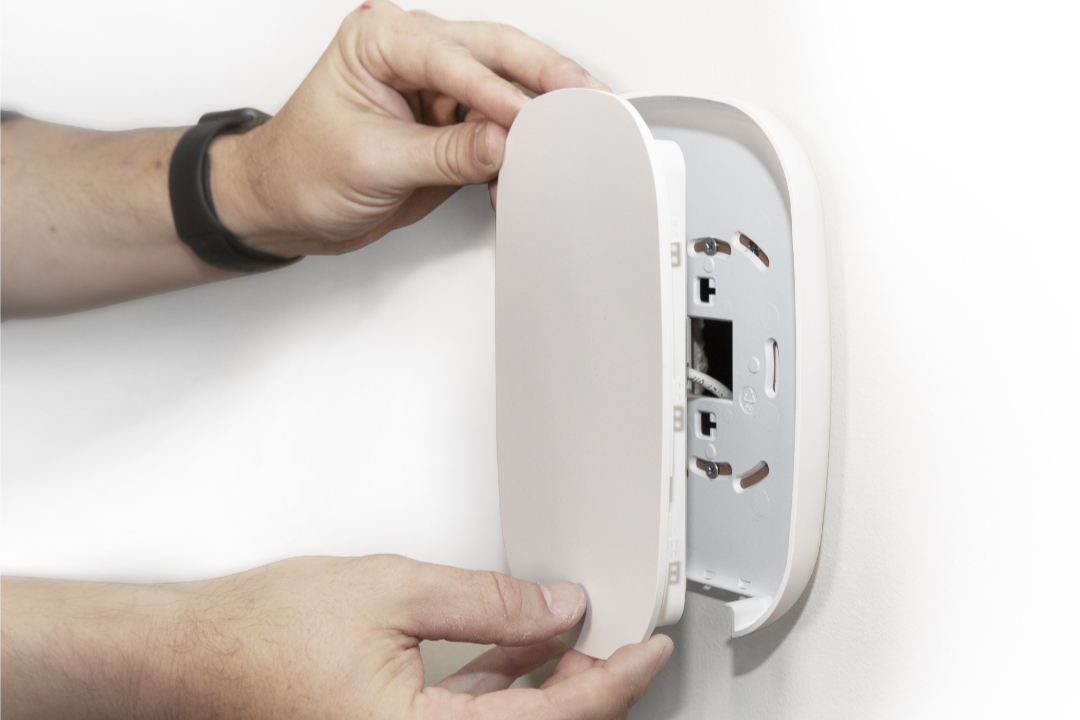
Professional wall-mounted Araknis access point installation for optimal coverage and performance.
What you see: An Araknis access point mounted on the wall in a strategic location.
Why wall-mounting is superior:
- Optimal Height: Wall-mounted APs are positioned at the right height for best signal distribution
- Out of the Way: Not taking up desk or shelf space
- Professional Appearance: Clean, flush mounting looks professional
- Better Coverage: Positioned to cover the specific area it's designed for
- POE Powered: Gets power through Ethernet cable - no visible power adapter
In-Ceiling Access Point for Basement Coverage
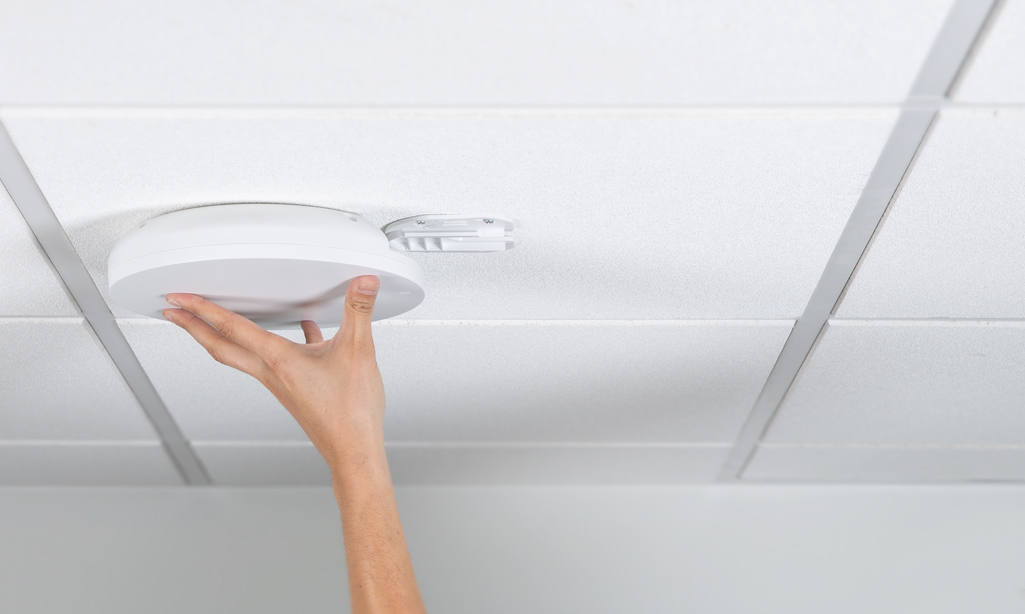
In-ceiling access point installation in basement with drop ceiling mount for seamless integration.
What you see: An Araknis access point mounted in the ceiling of a basement with a drop ceiling.
Why in-ceiling mounting is superior:
- Invisible Installation: Completely hidden in the ceiling - you don't even notice it's there
- Optimal Signal Distribution: Ceiling mounting provides 360-degree coverage below
- Professional Integration: Uses proper mounting brackets that make it flush with the ceiling
- Perfect for Basements: Basements often have WiFi dead zones - this eliminates them
- Multi-Level Coverage: Can provide coverage to both basement and first floor
Professional In-Ceiling Bracket Installation
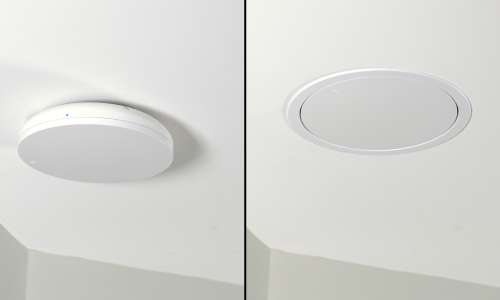
Before and after: Professional in-ceiling bracket installation makes access points flush and invisible.
What you see: The difference between a proper bracket installation (after) and without (before).
Why proper brackets matter:
- Flush Installation: Access point sits flush with the ceiling - looks professional
- Proper Support: Bracket provides structural support for the access point
- Clean Appearance: No gaps, no visible hardware - looks like it belongs there
- Secure Mounting: Access point is properly secured and won't fall
- Designed for Araknis: Brackets are specifically designed for Araknis access points
DIY Alternative: Access point sitting on a shelf or mounted with zip ties. Looks unprofessional and doesn't provide optimal coverage.
WiFi 6 Access Points: Future-Proof Performance
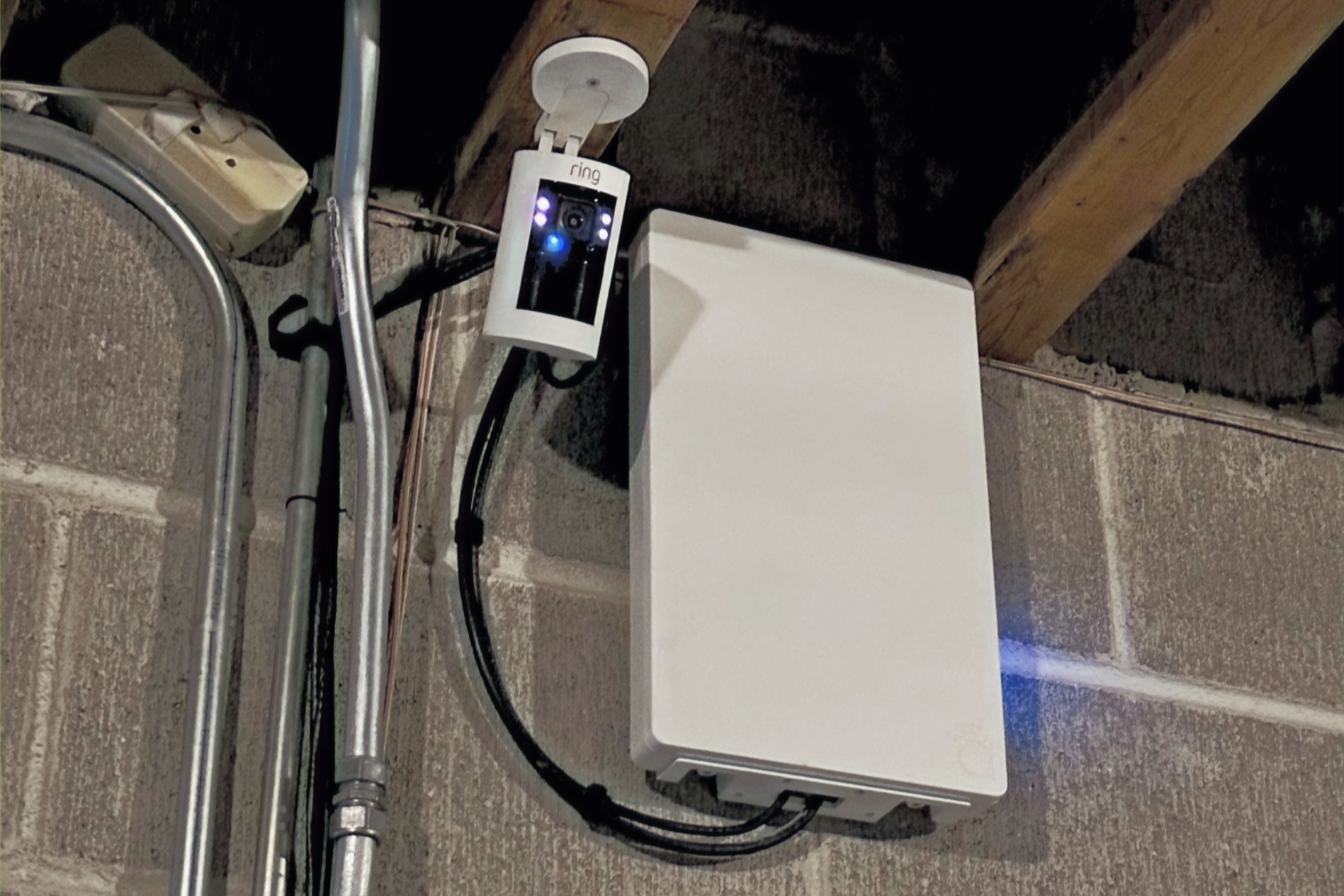
Araknis WiFi 6 520 Series access point providing high-performance wireless coverage.
What you see: An Araknis WiFi 6 520 Series Indoor Wireless Access Point - the latest in WiFi technology.
Why WiFi 6 is superior:
- Faster Speeds: WiFi 6 provides significantly faster speeds than WiFi 5 (802.11ac)
- Better Performance with Multiple Devices: Handles many devices simultaneously without slowing down
- Improved Range: Better signal strength and coverage area
- Lower Latency: Better for gaming, video calls, and real-time applications
- Future-Proof: Supports the latest devices and will remain relevant for years
- Better Battery Life: WiFi 6 is more efficient, so devices use less battery
- OFDMA Technology: Allows multiple devices to communicate simultaneously
🚀 WiFi 6 Benefits: WiFi 6 (802.11ax) is the latest WiFi standard. It's up to 4x faster than WiFi 5, handles 3x more devices, and provides 30% better battery life for your devices. Professional installations use WiFi 6 access points to ensure your network is ready for the future.
Professional vs DIY: Side-by-Side Comparison
✅ Professional Installation
- Enterprise-grade equipment (Araknis)
- Strategic access point placement
- Professional rack mounting
- POE switches for clean installation
- Wattbox power management
- Proper cable management and labeling
- WiFi 6 access points
- Professional configuration and optimization
- Remote monitoring and support
- Warranty and ongoing support
- Handles 50+ devices easily
- Perfect coverage throughout home
- Professional appearance
❌ DIY Installation
- Consumer-grade router from ISP
- Random access point placement
- Equipment sitting on shelves
- Power adapters everywhere
- Basic power strip
- Cables everywhere, no labeling
- Older WiFi standards
- Default configuration
- No monitoring or support
- No warranty or support
- Struggles with 10+ devices
- Dead zones and weak coverage
- Messy appearance
Why Professional Network Setup Costs More (And Why It's Worth It)
We get it - professional network installation costs more than buying a router at Best Buy. But here's why the investment pays off:
1. Reliability
Professional Setup: Enterprise-grade equipment designed to run 24/7 without issues. Proper configuration ensures stability.
DIY Setup: Consumer equipment that needs frequent reboots. Random issues that are hard to diagnose.
Cost of Downtime: How much is your time worth when your WiFi stops working? How much productivity do you lose? Professional setups rarely have issues, and when they do, we can fix them remotely.
2. Performance
Professional Setup: Optimized for your specific home. Access points placed strategically for perfect coverage. Configuration tuned for your devices and usage.
DIY Setup: Default settings, random placement, no optimization. Performance varies wildly based on where you are in the house.
Real-World Impact: Professional setups provide consistent, fast speeds everywhere. No more buffering during video calls, no more dropped connections, no more frustration.
3. Scalability
Professional Setup: Built to grow. Easy to add more access points, upgrade equipment, or expand coverage as your needs change.
DIY Setup: Limited by your initial equipment choices. Hard to expand without starting over.
Future-Proof: Professional setups use current technology (WiFi 6) and are designed to adapt as technology evolves. You won't need to replace everything in 2 years.
4. Support and Maintenance
Professional Setup: We're here when you need us. Remote monitoring, remote fixes, and ongoing support. Problems get solved quickly.
DIY Setup: You're on your own. When something breaks, you're troubleshooting, searching forums, and potentially replacing equipment.
Peace of Mind: Knowing you have professional support means you never have to worry about your network. If something goes wrong, we fix it.
The Hidden Costs of DIY Network Setups
DIY setups seem cheaper upfront, but they have hidden costs:
- Frequent Equipment Replacement: Consumer routers last 2-3 years. Professional equipment lasts 5-7 years.
- Time Spent Troubleshooting: How many hours do you waste trying to fix connectivity issues?
- Upgrade Costs: DIY setups often need complete replacements when technology changes.
- Dead Zones: Incomplete coverage means you might need to buy additional equipment (extenders, mesh nodes) that still don't work as well.
- Security Issues: Poor configuration can lead to security vulnerabilities and potential data breaches.
- Productivity Loss: Slow or unreliable WiFi impacts work, entertainment, and daily life.
Real-World Example: What This Setup Provides
Let's look at what this specific professional network setup provides:
Complete Home Coverage
- Main Floor: Wall-mounted access point provides coverage for main living areas
- Basement: In-ceiling access point eliminates basement dead zones
- Upper Floors: Additional access points can be added as needed
- Outdoor Areas: Outdoor access points can be added for patio, deck, and yard coverage
Smart Home Ready
- 50+ Connected Devices: Can easily handle all your smart home devices without slowdown
- IoT Device Support: VLAN separation keeps smart home devices secure
- Guest Network: Separate network for guests that doesn't impact your main network
- Prioritized Traffic: Video calls and streaming get priority automatically
Professional Management
- Remote Monitoring: We can monitor your network health and catch issues before they become problems
- Remote Reboots: If something needs a reboot, we can do it remotely - no visit needed
- Automatic Updates: Firmware updates can be managed remotely
- Performance Optimization: We can adjust settings remotely to optimize performance
Common DIY Network Problems We Fix
We often get called to fix DIY network installations. Here are the most common problems:
Problem #1: Dead Zones Everywhere
DIY Approach: Put router in corner, hope for the best.
Our Solution: Site survey to identify dead zones, strategic access point placement, and proper configuration to eliminate all dead zones.
Problem #2: Constant Disconnections
DIY Approach: Consumer router can't handle 20+ devices, constantly dropping connections.
Our Solution: Enterprise-grade equipment designed for high device counts, proper QoS configuration, and optimized settings.
Problem #3: Slow Speeds
DIY Approach: Default settings, no optimization, interference from neighbors.
Our Solution: Professional configuration, channel optimization, WiFi 6 technology, and interference mitigation.
Problem #4: Security Concerns
DIY Approach: Default passwords, open guest network, no VLAN separation.
Our Solution: Proper security configuration, separate VLANs, strong passwords, and ongoing security monitoring.
Problem #5: Can't Handle Smart Home
DIY Approach: Router wasn't designed for 30+ smart devices, performance degrades as more devices are added.
Our Solution: Network designed from the start for smart homes, proper device management, and scalability for future growth.
What to Look for in a Professional Network Installation
If you're considering professional network installation, here's what to look for:
✅ Professional Equipment
- Enterprise-grade routers (Araknis, Ubiquiti, Cisco)
- Managed POE switches
- WiFi 6 access points
- Professional power management (Wattbox)
✅ Professional Installation
- Rack mounting or proper equipment organization
- Strategic access point placement (not random)
- Proper cable management and labeling
- Clean, professional appearance
✅ Professional Configuration
- Optimized settings for your home and usage
- Proper VLAN setup (guest network, IoT network, main network)
- QoS configuration for prioritized traffic
- Security best practices implemented
✅ Professional Support
- Remote monitoring capabilities
- Remote troubleshooting and fixes
- Ongoing support and maintenance
- Warranty on equipment and installation
Cost Comparison: DIY vs Professional
Let's break down the real costs:
DIY Network Setup
- Consumer router: $100-$200
- WiFi extenders/mesh nodes: $150-$300
- Time spent troubleshooting: 10-20 hours (worth $500-$1000)
- Frequent replacements: $200-$400 every 2-3 years
- Total over 5 years: $1,000-$2,000+
Professional Network Setup
- Professional equipment and installation: $2,000-$5,000
- Equipment lasts 5-7 years
- Minimal troubleshooting needed
- Professional support included
- Total over 5 years: $2,000-$5,000
The Reality: Professional setups often cost the same or less over 5 years, but provide significantly better performance, reliability, and peace of mind.
When DIY Makes Sense (And When It Doesn't)
DIY Makes Sense For:
- Small apartments (under 1,000 sq ft)
- Single-person households with few devices
- People who enjoy troubleshooting and have technical skills
- Rental properties where you can't make permanent changes
- Very temporary living situations
Professional Installation Makes Sense For:
- Homes over 1,500 sq ft
- Homes with multiple floors
- Smart homes with 20+ connected devices
- People who work from home
- Gamers or streamers who need reliable, fast speeds
- Anyone who values reliability over saving a few dollars
- Homes with WiFi dead zones
- People who don't want to troubleshoot network issues
💡 Bottom Line: If you have a smart home, work from home, or just want WiFi that "just works," professional installation is worth every penny. The reliability, performance, and peace of mind you get is priceless.
What's Next: Getting Your Professional Network Installed
Ready to upgrade from DIY to professional? Here's what to expect:
Step 1: Site Survey
We visit your home to assess layout, construction materials, existing equipment, and coverage needs. We identify dead zones and determine optimal access point placement.
Step 2: Custom Design
We create a custom network design based on your home and needs. This includes equipment selection, access point placement, and configuration planning.
Step 3: Professional Installation
Our certified installers mount equipment, run cables, configure everything, and test thoroughly. Installation is clean, professional, and completed efficiently.
Step 4: Optimization and Testing
We test coverage throughout your home, optimize settings, configure security, and ensure everything works perfectly. We provide training on how to use your new network.
Step 5: Ongoing Support
We provide remote monitoring, support, and maintenance. If issues arise, we fix them quickly - often remotely.
Ready to Upgrade to a Professional Network?
Stop dealing with dead zones, slow speeds, and constant disconnections. Get a professional Araknis network installation that provides perfect coverage, handles all your devices, and "just works" every day.
What's Included:
- Professional site survey and design
- Enterprise-grade Araknis equipment
- Strategic access point placement
- Professional rack mounting and cable management
- Wattbox power management
- WiFi 6 access points for future-proof performance
- Professional configuration and optimization
- Remote monitoring and ongoing support
Or call us at (312) 439-7500
Final Thoughts
There's a reason professional network installations look different from DIY setups - because they are different. The professional equipment, strategic placement, proper configuration, and ongoing support create a network that's not just better, but superior in every way.
Your WiFi shouldn't be a source of frustration. With a professional network installation, you get:
- Perfect coverage throughout your home
- Fast, reliable speeds for all your devices
- No dead zones, no dropped connections
- Support for 50+ connected devices
- Professional appearance and organization
- Peace of mind knowing it's done right
- Ongoing support when you need it
If you're tired of WiFi problems, it's time to upgrade to a professional network. The difference is night and day.
Transform Your Home Network Today
Don't let poor WiFi hold you back. Get a professional network installation that provides the performance, reliability, and coverage your smart home deserves.
Schedule Free Network ConsultationCall: (312) 439-7500 | Email: Hello@denalitechs.com