Smart Home Not Working? 10 Common Issues & Professional Solutions
"My smart home isn't working" can describe very different faults. One app may be offline while local controls still work, one room may have a network problem, or several systems may share a failed power, network, controller, account, or cloud dependency. The first job is to define the exact scope.
Many faults can be isolated without replacing the whole system, but no technician should promise the cause or repair before collecting evidence. This guide separates safe observations from changes that can erase configuration or interrupt other services.
First rule: do not assume Wi-Fi is the cause. Record what failed and what still works, then check shared dependencies before rebooting, updating, re-pairing, or resetting equipment.
Why Smart Homes Stop Working
Smart-home functions can depend on power, local networks, controllers, device radios, apps, accounts, internet access, and cloud services. A failure normally affects only the functions that depend on that layer, which is why testing local and remote control separately is useful.
Common causes include:
- WiFi problems: Weak signal, router issues, or network congestion
- Power issues: Devices losing power or resetting
- Software updates: Apps or firmware needing updates
- Internet outages: Your ISP having problems
- Integration conflicts: Devices not playing well together
- Distance from router: Devices too far from WiFi source
10 Most Common Smart Home Problems (And How to Fix Them)
Problem #1: Devices Keep Disconnecting from WiFi
What's happening: Your smart lights, thermostat, or other devices keep showing as "offline" in your app, then reconnect, then disconnect again.
Possible causes:
- Weak WiFi signal where devices are located
- Router can't handle too many connected devices
- WiFi interference from neighbors or other electronics
- Router needs firmware update
- Outdated router hardware
✅ Solutions:
- Check the actual path: A phone's bar icon is only a rough clue. Record the affected device, access point, band, signal/quality data when available, wired uplink, internet status, and exact time of failure.
- Restart deliberately: Reboot only the suspected device or network component, follow its published procedure, and choose a time when an outage will not interrupt cameras, work, calls, or automation.
- Test placement safely: A temporary move can help isolate an RF problem, but final access-point placement should account for cabling, antenna pattern, structure, interference, and measured coverage.
- Check router capacity and health: Device count alone is not enough; review traffic, software support, errors, internet speed, and radio utilization.
- Improve coverage deliberately: Reposition equipment or add a wired access point, managed mesh node, or extender only after checking the signal and available backhaul.
- Use professional diagnosis when needed: Persistent issues should be measured and traced before new equipment is specified.
⚠️ When to Call a Professional:
If several devices keep disconnecting after safe basic checks, a professional can test coverage, interference, wired links, network services, internet performance, and the affected clients. The remedy might be configuration, cabling, equipment replacement, or additional access points; no design can promise that every future disconnection is permanently eliminated.
Problem #2: Smart Lights Won't Turn On or Respond
What's happening: You tap the app to turn on lights, but nothing happens. Or lights turn on but won't dim or change colors.
Common causes:
- Light bulb lost power connection
- WiFi disconnection
- App needs update or restart
- Hub or bridge offline
- Firmware update needed
✅ Solutions:
- Check Physical Power: Make sure the light switch is on and the bulb has power. Some smart lights need the physical switch to stay on.
- Restart the app: Close and reopen it, then confirm the account, home, and room shown are correct.
- Check the hub or processor: Verify its power and the connection method specified for that model; many bridges use Ethernet rather than Wi-Fi.
- Compare local and app control: If the wall control works but the app does not, preserve the device pairing and investigate the bridge, network, account, cloud, or integration path.
- Use model-specific recovery: Do not toggle power repeatedly, unscrew energized lamps, remove the device, or re-pair it until you have the manufacturer's procedure and know what configuration may be lost.
- Check updates selectively: Review compatibility and release notes before changing app, hub, processor, or device firmware.
Problem #3: Voice Assistant (Alexa, Google) Not Controlling Devices
What's happening: You say "Alexa, turn on the lights" but nothing happens. Or devices work in the app but not via voice control.
Possible causes:
- Skills/actions not properly linked
- Device names don't match what you're saying
- Voice assistant lost internet connection
- Skill/app needs re-authorization
✅ Solutions:
- Check service status and accounts: Confirm internet access, the correct linked accounts, required subscription, permissions, and whether the platform reports an outage.
- Check names and scope: Confirm the spoken device or scene name is unique and that the affected item is exposed to the voice platform.
- Test both sides: Run the action in the native control app and in the voice app to identify which integration layer fails.
- Refresh deliberately: Use the platform's supported device-sync or discovery step. Do not unlink the account first unless the official recovery path requires it.
Problem #4: Smart Thermostat Not Responding
What's happening: Your smart thermostat shows the wrong temperature, won't change settings, or keeps disconnecting.
✅ Solutions:
- Observe before opening: Record the display, error, setpoint, actual temperature, HVAC response, and whether other zones work. Do not remove wiring or open line-voltage or HVAC equipment unless qualified.
- Separate control from mechanical faults: A thermostat can be online while the furnace, boiler, heat pump, zone panel, sensor, or power circuit has failed.
- Check the documented connection: Verify the thermostat's network, gateway, account, and driver status when those are part of the system.
- Use qualified HVAC service: Call the HVAC contractor for no-heat/no-cool conditions, combustion issues, refrigerant, airflow, hydronics, or equipment faults; use the automation integrator for driver and interface problems.
Problem #5: Security Cameras Not Recording or Showing Live Feed
What's happening: Cameras show "offline" in the app, won't record, or you can't view the live feed.
✅ Solutions:
- Check the actual path: Confirm power or PoE, switch link, IP address, recorder status, and the wired or wireless connection used by the exact camera.
- Compare live view and recording: A working live stream with missing playback points to a different fault than an offline camera.
- Check storage health: Review recorder or SD-card status, recording schedule, retention/overwrite settings, time, and event configuration—not only free space.
- Check Subscription: Some cameras require cloud storage subscriptions. Verify your subscription is active.
- Check app permissions: Verify notification, local-network, microphone, photo, and location access only where the requested function requires them.
- Avoid broad reboots first: Preserve evidence and check the camera, PoE port, NVR, account, and network path before restarting the whole network.
Problem #6: Smart Home Hub (Control4, URC, Hubitat) Offline
What's happening: Your main smart home hub shows as offline and nothing works. This is more serious than individual device problems.
⚠️ This is Critical:
If a Control4 or URC controller is offline, the functions that depend on it may stop or become limited, while independent wall controls and subsystems may continue locally. Check the scope before assuming the whole home has failed.
✅ Solutions:
- Check Power: Ensure hub is plugged in and power LED is on.
- Check Ethernet Connection: Most hubs connect via Ethernet. Ensure cable is plugged in securely on both ends.
- Check controller status: Review its indicators, switch link, IP lease, and platform diagnostics before interrupting power.
- Restart only when appropriate: Use the manufacturer's supported restart procedure and allow the documented boot time; do not repeatedly cycle power.
- Separate local network from internet: A controller can depend on the local router or switch while some programmed functions continue without internet.
- Professional Support: For Control4 or URC systems, you may need professional support to reconnect and reprogram. Contact your installer.
Problem #7: Devices Won't Integrate Together
What's happening: You have smart lights, thermostat, and security system, but they won't work together. Scenes and automations don't trigger.
Why this happens: Different brands use different protocols. Not all devices are compatible with each other. You might have Zigbee devices, Z-Wave devices, WiFi devices, and Bluetooth devices that can't talk to each other.
✅ Solutions:
- Choose a supported integration path: A controller, gateway, bridge, or cloud link can coordinate different device types only when exact models, drivers, and functions are compatible.
- Check Compatibility: Before buying new devices, check if they're compatible with your existing system.
- Reduce unnecessary dependencies: Prefer a smaller set of documented, supported platforms where that meets the project, but do not assume same-brand products automatically integrate.
- Verified Integration: An installer can confirm exact models, drivers, firmware, and supported functions before promising that products from different brands will work together.
Problem #8: Smart Locks Not Responding
What's happening: Can't lock/unlock doors via app, keypad not working, or lock shows as offline.
✅ Solutions:
- Check power: If the lock uses batteries, review its low-battery indication and replace them with the type specified by the manufacturer.
- Check the correct connection: The lock may use Wi-Fi, Z-Wave, Zigbee, Bluetooth, or a proprietary link. Follow the exact model's status and pairing instructions.
- Use the documented fallback: The exact lock may use a key, external emergency power, interior thumb-turn, or another procedure. Confirm it before an emergency.
- Avoid reset unless recovery is ready: A factory reset can erase codes, schedules, network inclusion, and integrations.
- Check door alignment: If the bolt binds, have the door, hinges, frame, and strike evaluated; do not force the motor or casually alter rated door hardware.
Problem #9: Apps Crashing or Not Loading
What's happening: Your smart home app crashes when you open it, won't load devices, or freezes constantly.
✅ Solutions:
- Check service and account status: Confirm the correct account, home/site, subscription, internet access, and any vendor outage.
- Restart the app: Close it fully and reopen it, then compare behavior on another authorized device if available.
- Review compatibility: Check the app's required phone OS and the control system's supported app version before updating either.
- Preserve access: Confirm passwords, multi-factor authentication, account ownership, and local data before clearing storage or reinstalling.
- Use vendor recovery: Follow the official cache, reinstall, or account-repair instructions rather than deleting data as a generic first step.
Problem #10: Everything Was Working, Now Nothing Works
What's happening: Your smart home worked reliably for months, then suddenly everything stopped working at once.
Shared dependencies to investigate:
- Utility, circuit, UPS, or managed-power interruption
- Router, switch, access point, DNS, or controller fault
- Internet service outage
- Power outage that reset devices
- ISP changed something (IP address, settings)
- Major software update broke compatibility
✅ Diagnostic order:
- Define the boundary: Test local controls, one wired device, one Wi-Fi device, internet access, and the main control interface.
- Check power and links: Record UPS/power state, controller indicators, switch ports, and ISP equipment status.
- Check external status: Review ISP and manufacturer service notices plus account/subscription state.
- Preserve configuration: Confirm backups, project files, credentials, and recent-change history.
- Restart one dependency only: Use its supported procedure, record the result, and do not update unrelated equipment at the same time.
- Escalate with evidence: Provide the timeline, affected functions, status indicators, and steps already tested to the responsible provider.
The Smart Home Troubleshooting Checklist
Before changing the system, collect evidence and use the least destructive step first:
- Record the symptom: Note the exact device, room, time, error, affected functions, and what still works
- Check scope: Determine whether one device, one room, one platform, the local network, or the internet is affected
- Check physical state: Inspect power indicators, batteries, cables, switch ports, breakers, and obvious damage without opening unsafe equipment
- Check service status: Review ISP, manufacturer cloud, account, and subscription status where relevant
- Restart the app or one endpoint: Use the manufacturer's procedure and verify the result before changing anything else
- Preserve configuration: Export or confirm backups, credentials, and the current project file before firmware, pairing, or network changes
- Update selectively: Read release notes and compatibility requirements; do not update every component at once
- Avoid destructive resets: Do not remove, re-pair, or factory-reset a device unless its configuration and dependencies are understood
When DIY Troubleshooting Isn't Enough
Sometimes, you've tried everything and your smart home still won't work. Here's when it's time to call a professional:
- Several devices share a symptom: Check common dependencies such as power, internet, router, switch, access point, account, cloud service, controller, or recent software change
- Control4 or URC project changes: Confirm the required programming software, current project file, credentials, controller, and dealer access
- Persistent Wi-Fi coverage issues: Use a site survey and cabling review before selecting access points, mesh nodes, or another remedy
- Cross-brand integration problems: Verify exact models, drivers, firmware, accounts, and supported commands
- Large or undocumented systems: Build an inventory and dependency map; device count by itself does not determine whether professional service is required
- Safety or property risk: Stop and call the appropriate qualified trade for electrical, fire, gas, water, gate, structural, or life-safety issues
Professional benefit: An experienced installer can bring network, power, wiring, and platform-specific diagnostic tools. A good service visit documents the cause and fix; it should not promise that unrelated or future failures cannot occur.
Preventing Smart Home Problems
The best way to fix smart home problems is to prevent them in the first place:
1. Invest in Good WiFi
Network problems are a common cause of connected-device failures, but power, cloud services, accounts, software, wiring, batteries, and product compatibility can produce similar symptoms. Test the existing ISP gateway before replacing it, and choose any new network from measured requirements rather than a generic mesh recommendation.
2. Plan supported updates
Keep security and maintenance updates on a planned schedule. For an integrated system, confirm app, controller, driver, and device compatibility with your installer before updating. Keep a current backup and follow the manufacturer's recovery instructions; do not enable unattended updates across the whole system as a troubleshooting shortcut.
3. Use Professional Installation
Professional installation should reduce avoidable setup, wiring, and programming errors, but verify qualifications, scope, documentation, testing, and support instead of treating the label as a guarantee.
4. Choose Compatible Devices
Before buying new devices, ensure they're compatible with your existing system. Mixing incompatible brands causes problems.
5. Regular Maintenance
Just like your car needs maintenance, your smart home does too. Professional maintenance checks can catch problems before they become major issues.
Common Smart Home Mistakes That Cause Problems
Avoid these common mistakes:
- Replacing the ISP router without testing: Some provider gateways meet the home's needs. Check coverage, traffic, wired connections, and required features before buying a replacement
- Confusing the router with Wi-Fi coverage: The router may belong near the service entry or rack. Wireless access points should be positioned for the rooms they serve
- Capacity problems: Check traffic, airtime, wired links, router load, and device behavior before deciding whether equipment or access-point capacity must change
- Mixing incompatible brands: Not all smart devices work together. Check compatibility first
- Not securing your network: Weak WiFi passwords can allow others to use your network, slowing it down
- Ignoring firmware updates: Outdated firmware causes compatibility issues
- Poor device placement: Devices too far from router or behind thick walls won't connect well
Smart Home Troubleshooting by Device Type
Smart Lights Not Working
- Compare physical control, app control, and other lights on the same circuit or hub
- Check the documented hub/processor power and network path
- Preserve pairing and programming until the failure layer is identified
- Review compatibility before any app or firmware update
- Replace a lamp or control only after confirming load compatibility and the failed component
Smart Thermostat Issues
- Record the display, error, setpoint, room temperature, and actual HVAC response
- Do not alter thermostat wiring or mechanical equipment unless qualified
- Check the documented network, gateway, account, and driver path
- Use HVAC service for equipment faults and automation service for integration faults
Security Camera Problems
- Check power or PoE, network link, IP address, and recorder status
- Compare live view, recording, playback, and notifications to isolate the failed layer
- Check disk/SD health, recording schedule, event rules, time, and retention settings
- Verify subscription status
- Review app and firmware compatibility before updating
- Measure wireless conditions at Wi-Fi cameras; do not assume distance is the only cause
Smart Speaker/Alexa Issues
- Check service status, internet access, linked account, and required subscription
- Test the action in both the native smart-home app and the voice app
- Confirm the device or scene name is unique and exposed to the voice platform
- Use supported sync/discovery before unlinking accounts or changing firmware
- Check microphone isn't muted
- Verify internet connection
What your installer checks when basic observations are not enough
If the basic evidence does not identify the cause, use controlled diagnostics rather than broad changes:
1. Check Router Logs
Review DHCP leases, link events, access-point associations, errors, uptime, and internet status around the recorded failure time. A disconnect entry is evidence, not proof that the connected device is the root cause.
2. Change WiFi Channel
Use a channel and utilization survey before changing RF settings. For 2.4 GHz, non-overlapping channel planning commonly uses 1, 6, and 11 in North America, but the correct channel, width, and transmit power depend on the measured environment and all nearby access points.
3. Verify band and onboarding requirements
A 2.4-GHz-only device cannot connect to 5 GHz merely because both bands share a network name. Some onboarding apps or poorly implemented devices have special requirements, so check the manufacturer's instructions before separating SSIDs or changing a working network.
4. Check Device IP Conflicts
Duplicate static addresses or overlapping DHCP/static assignments can cause intermittent access. Review the DHCP scope, reservations, static-address plan, ARP information, and device configuration before changing addresses.
5. Preserve state before escalation
Collect backups, controller/project files, network configuration, account ownership, serial numbers, screenshots, and a timeline. Change one variable at a time and record the result.
⚠️ Do not factory-reset the whole system
A reset can erase pairing, credentials, schedules, scenes, device ownership, and integration data without repairing the underlying fault. Reset one device only when its official recovery procedure calls for it and the required configuration can be restored.
What professional diagnosis should add
We get it - you want to fix things yourself. But sometimes, calling a professional is faster, cheaper, and less frustrating:
- Structured diagnosis: Start with the shared power, network, controller, account, and software dependencies before replacing parts
- Appropriate tools: Use RF survey, cable, network, power, and platform diagnostics when the symptom calls for them
- Root-cause documentation: Record the fault, evidence, change made, test result, and any condition that could cause recurrence
- Platform access: Control4 and URC project changes may require professional software, credentials, and the current project file
- Clear billing: State diagnostic time, travel, parts, programming, and follow-up work before service begins
- Written coverage: Warranty and ongoing support exist only when provided by the applicable manufacturer or service agreement
Smart Home Not Working? We Can Fix It.
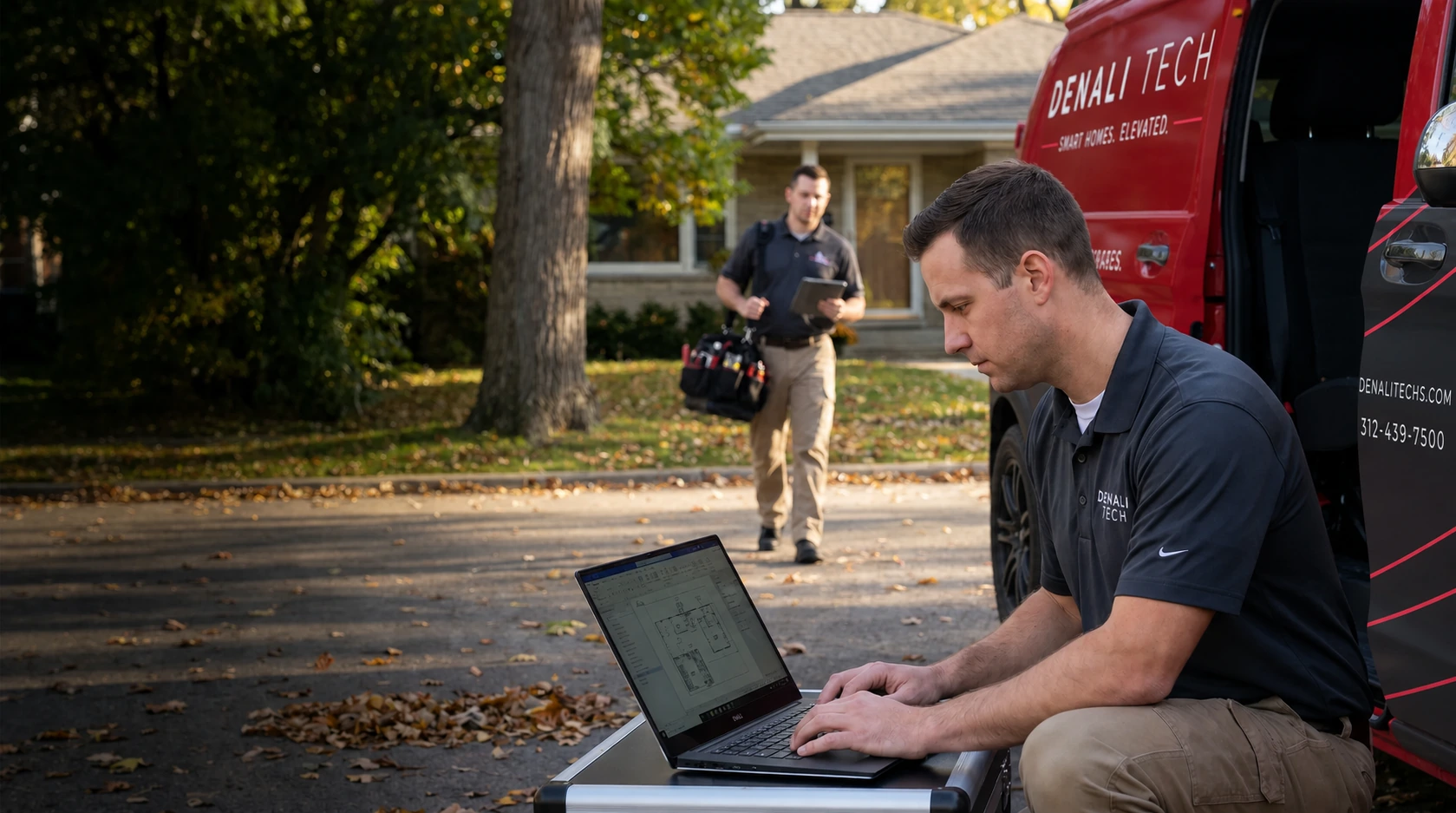
Send the symptoms, affected rooms, equipment models, recent changes, and any error messages. Denali Tech can define an initial diagnostic scope and explain whether the next step is remote review, an on-site visit, another qualified trade, or manufacturer support. Timing and repair outcome depend on access, evidence, parts, credentials, and the actual fault.
We work on: Wi-Fi problems, device connectivity, controller issues, integration faults, and system-wide failures. The service begins with diagnosis; recommended fixes and any remaining limitations are explained before work proceeds.
Get Professional Smart Home HelpOr message us on WhatsApp
FAQ: Smart Home Troubleshooting
Why are my smart home devices not connecting?
A device can fail to connect because of power, signal, interference, account or cloud service, compatibility, pairing, software, DHCP or DNS, cabling, or the internet connection. Check the exact model's status and instructions, then isolate one layer at a time before replacing equipment.
How do I fix smart home devices that keep disconnecting?
Repeated disconnections can come from weak signal, interference, roaming, software, power, cabling, DHCP or DNS, the internet provider, or the device itself. Measure and isolate the cause before moving or replacing network equipment.
Why won't my smart lights turn on?
Smart lights can stop responding because of a power or load problem, a disconnected bridge or controller, a network or account issue, a failed device, or a programming change. Check what else is affected and follow the exact product's supported diagnostic steps before resetting or updating anything.
How do I fix a smart home hub that's not responding?
If a controller or hub is not responding, first record its indicators and determine whether power, the local network, internet, cloud service, or only one interface is affected. Use the manufacturer's supported restart procedure only after preserving configuration and understanding the outage impact. Control4 or URC project changes may require professional software, credentials, and the current project file.
My smart home was working fine, now nothing works. What happened?
A simultaneous failure points to a shared dependency, but that could be utility power, UPS, router, switch, access point, controller, DNS, internet service, cloud service, account, or a recent update. Record what still works, check status indicators and service notices, and avoid restarting the whole system until the likely dependency and outage impact are understood.
When should I call a professional for smart home problems?
Call a qualified installer when safe basic checks do not isolate the fault, several systems fail together, wiring or electrical work is involved, or dealer-only Control4 or URC programming is required. Ask for the diagnosis and proposed scope before approving replacement equipment.
Can you fix smart home problems remotely?
Some problems can be diagnosed remotely when the system exposes useful status information and the required access is available. Coverage measurements, cabling faults, electrical work, failed hardware, and many programming changes require an on-site visit. We confirm which approach is appropriate after reviewing the symptoms and system.
How much does smart home troubleshooting cost?
Troubleshooting cost depends on the system, documentation, access, fault, required testing, and whether replacement parts or programming are needed. Denali Tech reviews the reported symptoms and explains the service scope and pricing before authorized work begins.
Official support references
Control4 owner support · Control4 getting-help guidance · OvrC remote diagnostics. Reviewed August 15, 2026. Troubleshooting steps are general triage, not a universal repair procedure. Stop when there is heat, odor, water, exposed wiring, repeated breaker trips, physical damage, or uncertainty about electrical safety. Exact recovery steps depend on the installed system and manufacturer instructions.
Final Thoughts
Smart home problems are frustrating, but a structured diagnosis can narrow the cause without creating additional outages. Record what failed and when, identify what still works, check power and status indicators, and isolate one dependency at a time. Restart equipment only when the manufacturer or qualified technician recommends it and the impact is understood.
For persistent problems or complex systems, a qualified installer can test the network, wiring, power, programming, and device-specific dependencies and document the recommended repair.
Remember: Repeated failures are a reason to diagnose the underlying cause. An upgrade may be appropriate when equipment is unsupported, incompatible, damaged, or no longer meets the project requirements, but replacement should follow diagnosis rather than guesswork.
Need Professional Smart Home Help?
Denali Tech troubleshoots connected-home systems in the Chicago area. Scheduling depends on location, workload, access, and the type of system; we confirm availability and the service scope before the appointment.
Services: Troubleshooting, WiFi installation, device reconnection, system reprogramming, Control4/URC support, and complete smart home optimization.
Schedule Smart Home ServiceWhatsApp: Message us | Email: services@denalitechs.com