Homeowner-safe help
Control4 not working? Start here—without making it worse.
A few calm checks can tell us whether the problem is one remote, one room, the app, or the whole home. This guide helps you collect useful clues; it does not ask you to reset or reprogram anything.
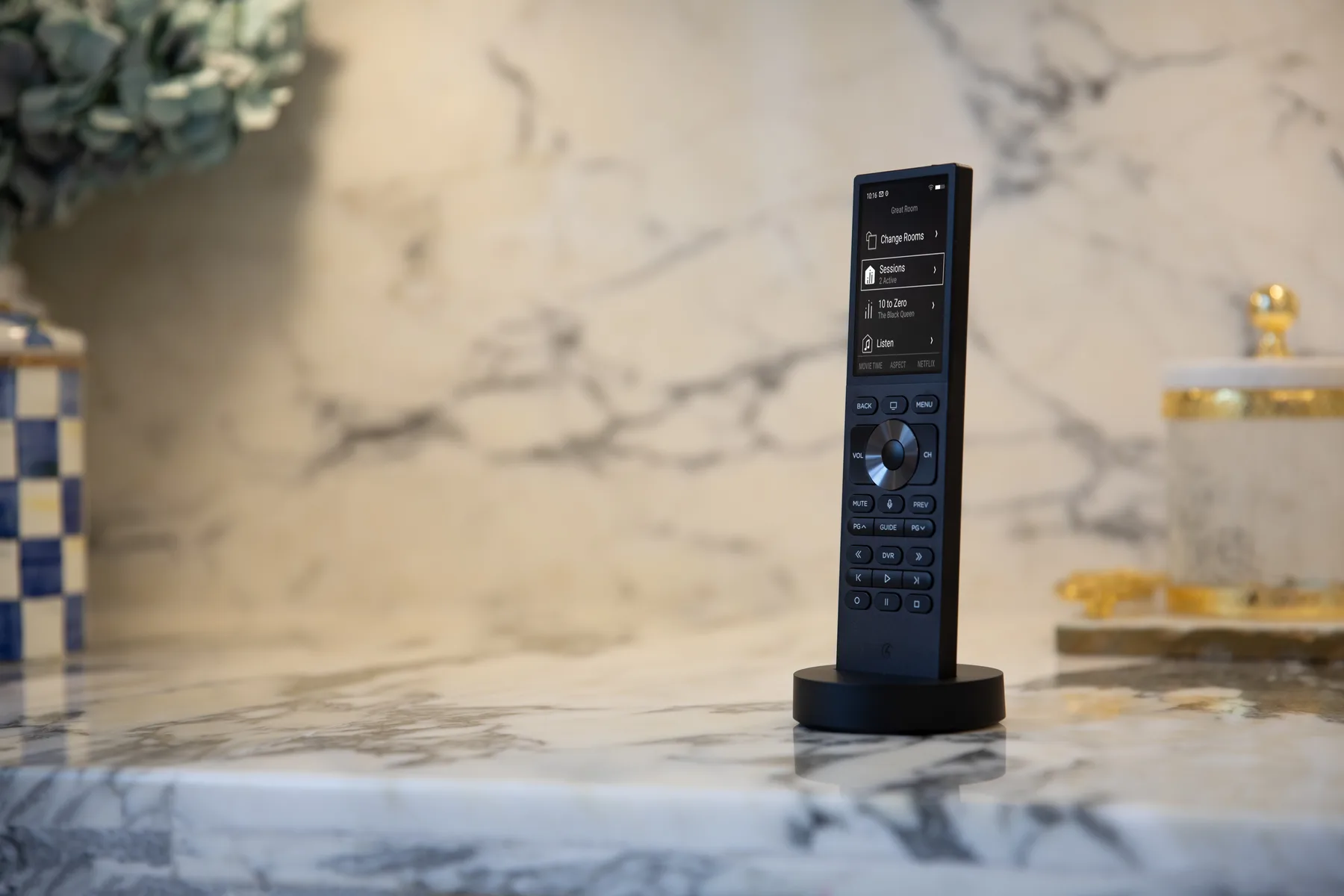
Five safe checks that take a few minutes
1. Name the exact thing that changed
Is it one TV, one room, the Control4 app, a remote, music, cameras, lighting, or everything? The answer quickly narrows the path.
2. Try a second normal control
If a remote is not responding, try the app or a wall control you normally use. If the app is the issue, see whether a local keypad or remote still works.
3. Check your location and connection
At home, confirm your phone is on your usual home Wi-Fi. Away from home, note that in the request. Do not change network settings or passwords.
4. Refresh only the app
Closing and reopening the Control4 app is safe. So is replacing ordinary remote batteries if the remote uses them. Leave racks, controllers, network gear, and power equipment alone.
5. Capture the exact symptom
Write down the room, device, time, message on screen, and what happened just before the problem. A short video can help when it does not reveal private information.
What the pattern can tell us
One control failing often points to that control. Several rooms failing together can point to a shared service layer. It is evidence—not a reason to reset equipment.
What not to reset or change
- the Control4 controller, network rack, router, switches, access points, power manager, or UPS
- software updates, system settings, Wi-Fi names, Wi-Fi passwords, or account settings
- locks, security, alarm, door-station, camera, garage, or water-control equipment
These systems are connected. A random reset can turn one visible issue into a larger outage or remove information that helps diagnose it.
What to send with a service request
Keep it short. We do not need passwords, lock codes, alarm codes, Wi-Fi credentials, account screenshots, or any private information.
- your neighborhood or ZIP code
- the room and device affected
- when it started and whether it is constant or intermittent
- what still works normally
- any exact on-screen message
- a photo of the device or indicator only if it does not show private data
- whether your internet provider, home network, TV equipment, power, or phones changed recently
Remote help or an in-home visit?
Remote diagnostic may fit
When the system is reachable, the symptoms are clear, and the work can be completed safely without changing physical equipment.
An in-home visit may fit
When the problem involves equipment, power, wiring, room hardware, a larger network change, or a system that needs hands-on testing.
Tell us what is happening—we'll help choose the right next step.
A few clear details are enough. We can tell you whether a remote diagnostic, a visit, or a planned upgrade assessment makes the most sense.
Where to find system-specific help
The Control4 homeowner help guide explains the official support paths. The Control4 owner resources also connect you with account and integrator assistance.
This is Denali Tech's observation checklist, not a manufacturer repair procedure or a substitute for professional service, emergency instructions, or the documentation for your exact equipment. Features and service options depend on the system, connected products, account status, and condition of the home.